Set Up Your Engine Build
These steps get your computer ready to run the Brand Intelligence Engine (BIE), the set of skills you bought. They prepare your workspace; the brand building itself starts after them, in Phase 1 on Studio Home. Come back to this page whenever you need a step again, an update or a fix. New here? See how the Studio works.
Before you start, you need four things
- A Mac or Windows computer. Phones and iPads cannot run the BIE.
- A paid Claude plan. The free plan does not include Cowork, the part of Claude that works with your files.
- The Claude desktop app. Step 3 explains why the browser version will not work.
- One folder for your brand, on your computer. Step 4 sets it up.
Download the current BIE
The BIE arrives as a single ZIP file: a compressed file that holds all of your skills. Cowork installs it in one piece, so keep it as a ZIP.
Using Safari? Change one setting before you download. You are using Safari right now.
Safari opens ZIP files automatically and leaves you a folder, and Cowork needs the ZIP itself. In Safari, open Safari > Settings > General and untick Open "safe" files after downloading. Or download with Chrome. More on this
Getting updates
When a new version ships, the version at the top of every Studio page changes. Come back here, download it, and install it the same way as step 5. Then start a new chat so Claude picks it up. Updating never touches your Brand Brain or your files.
The Safari ZIP fix
Safari treats ZIP files as "safe" and opens them as soon as they finish downloading. You end up with a folder in your Downloads, and Cowork cannot install a folder. It needs the ZIP file.
- Open Safari's settings.In the menu bar, choose Safari > Settings, then the General tab.
- Untick "Open "safe" files after downloading".It sits near the bottom of the General tab.
- Download the BIE again.Delete the folder Safari made, then use the download button in step 1.
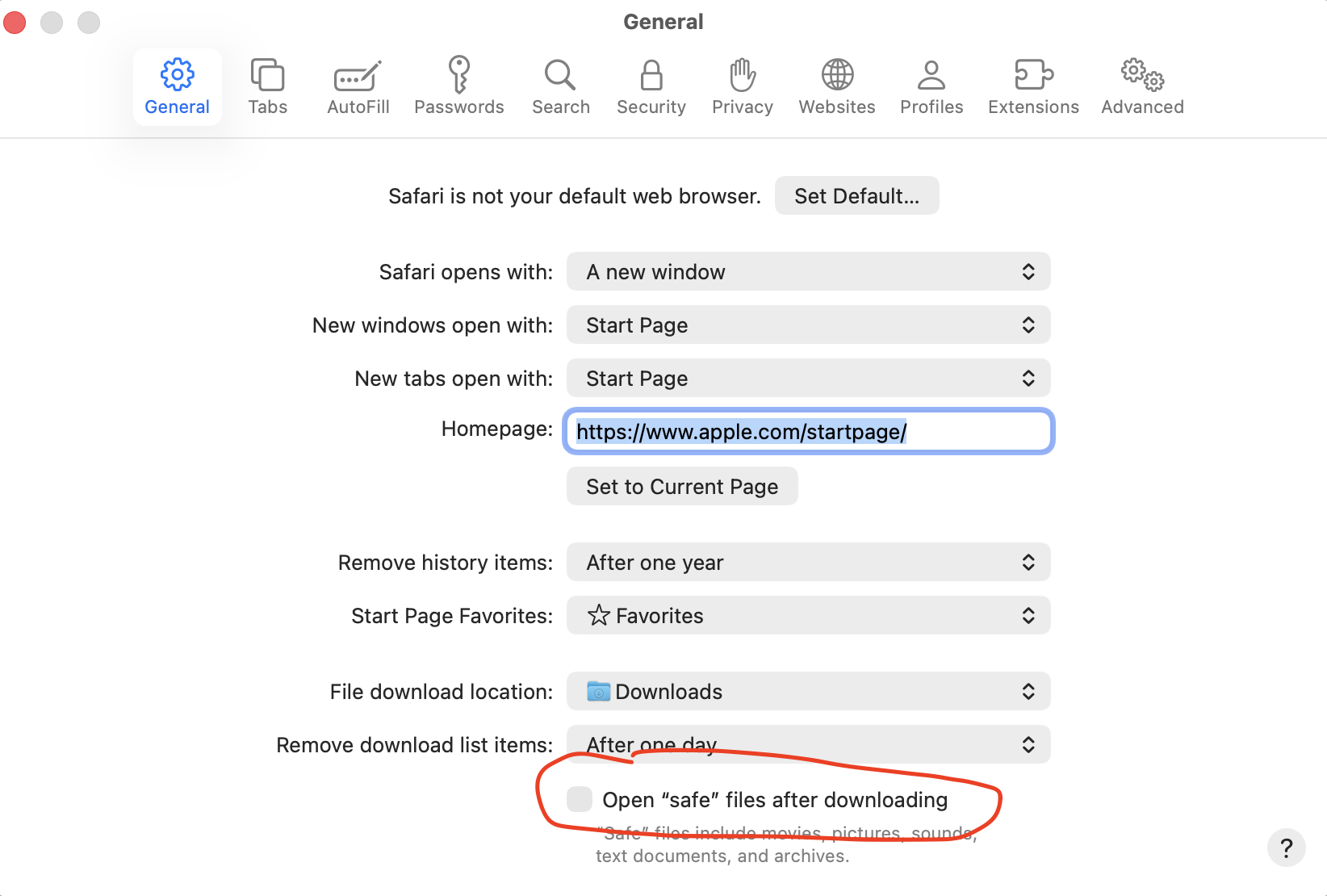
Prefer not to change the setting? Download with Chrome instead. Either way works.
Use the Claude desktop app, with Cowork
The BIE runs inside Cowork, a part of the Claude desktop app. Cowork lets Claude open, read and save files in a folder on your computer. That folder is where your Brand Brain and everything your skills make will live.
- Install the Claude desktop app on your Mac or Windows computer and sign in with your paid plan.
- Do your BIE work in Cowork. This is the setup the BIE is built and supported for.
- Claude in a web browser cannot reach the folders on your computer, so it cannot hold your Brand Workspace. Use the desktop app for all of this.
Create your Brand Workspace
Your Brand Workspace is one folder on your computer that holds everything for your brand: your Brand Brain, your foundation documents, your ledger and the material you feed in. Claude reads from it and saves to it. It is how the BIE remembers you from one chat to the next.
Make the folder
- Create one folder named after your brand.For example "Brand Jane Smith", or just your brand name. Avoid calling it "Brand Brain": the Brand Brain is one document that will sit inside it.
- Put it in Dropbox if you can.Dropbox keeps the files on your computer and backs them up, so your Brand Brain survives a broken laptop.
- Make sure the files are really on your computer.In Dropbox, set the folder to Available offline, never "Online-only". If files open without a download spinner, it is right.
- Leave it where it is.Set it up once and do not move or rename it later.
You only make the empty folder. The skills build everything inside it as you go.
No Dropbox?
- A folder in Documents or on your Desktop works. Turn on Time Machine (Mac) or File History (Windows) so it is backed up.
- Google Drive for Desktop works if you switch it to Mirror files. Its default "Stream files" keeps files online, where Claude cannot see them.
- iCloud Drive is best avoided. If you use it, turn off "Optimize Mac Storage", which quietly moves files off your computer.
Use it every time
When you start a chat in Cowork, choose your Brand Workspace as the folder Claude works in. Use the same folder for every chat about your brand.
Install BIE in Cowork
You will add the BIE ZIP from step 1 to Cowork as a plugin. A plugin is a package of skills; once it is installed, Claude can use every skill in it.
- Open Customize.
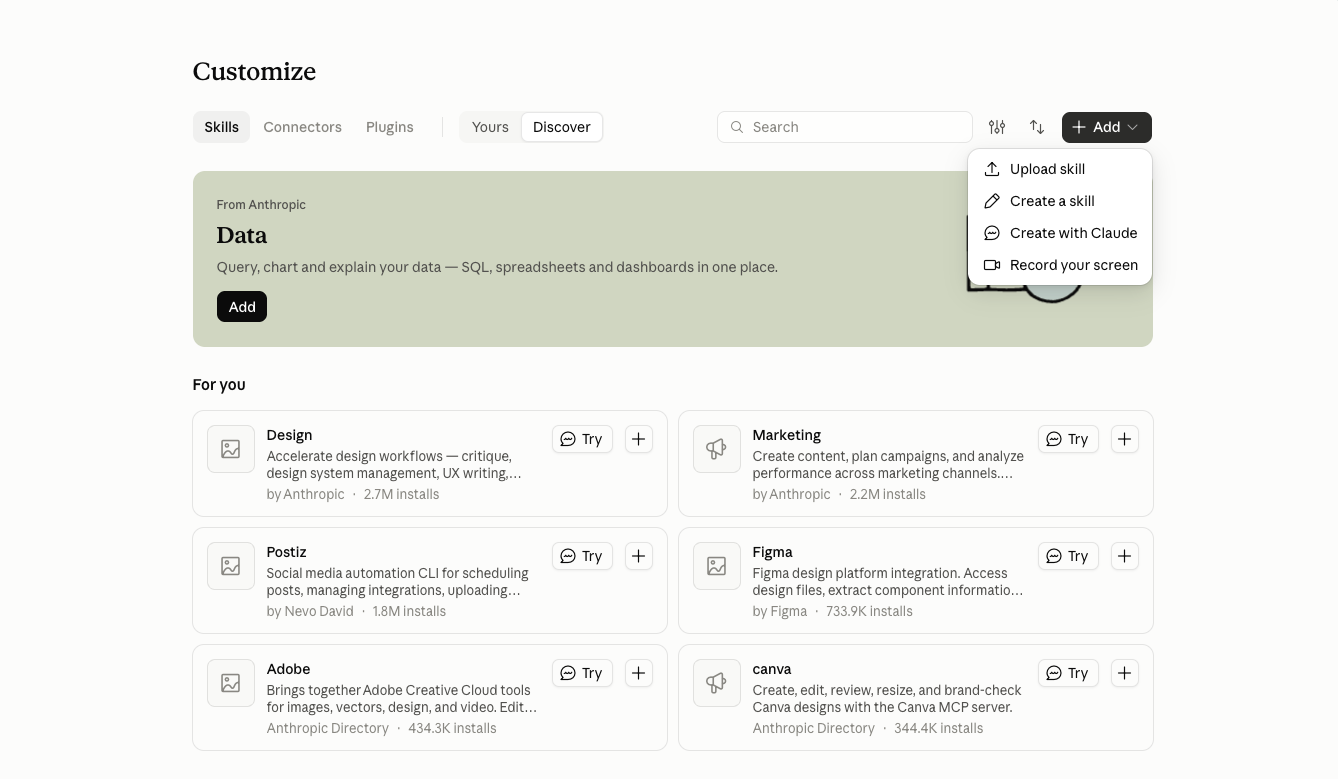
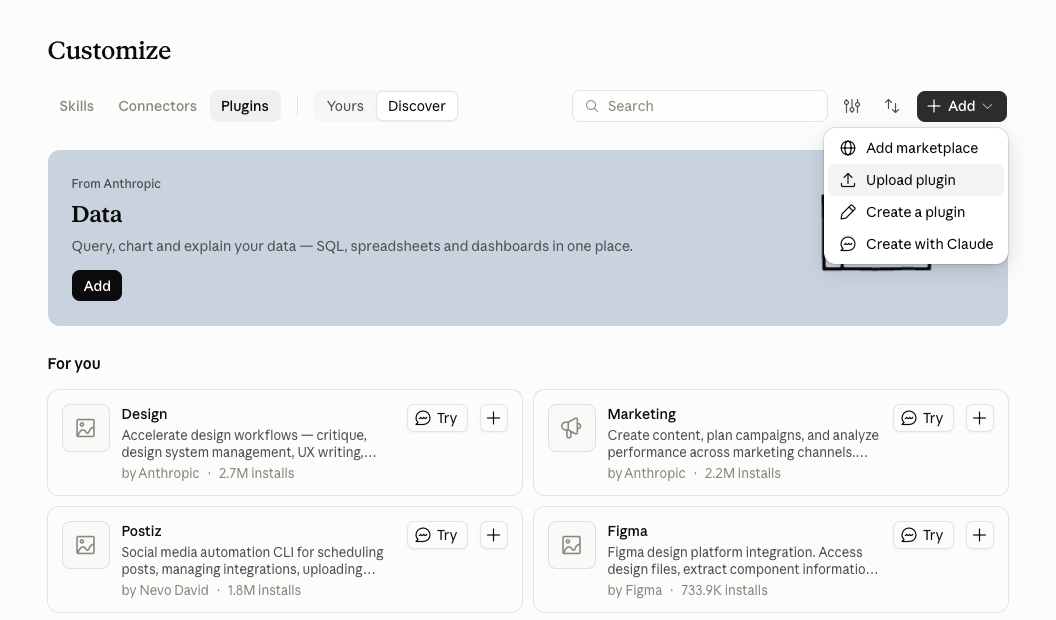
- Choose Upload Plugin.Open the Plugins tab, then Add, then Upload Plugin.
- Pick the BIE ZIP file.Find the file you downloaded in step 1, usually in Downloads. Its name ends in
.zip. If you only see a folder, go back to the Safari fix.
- Upload it.Cowork shows the file you picked and a short description of the BIE. Choose Upload.
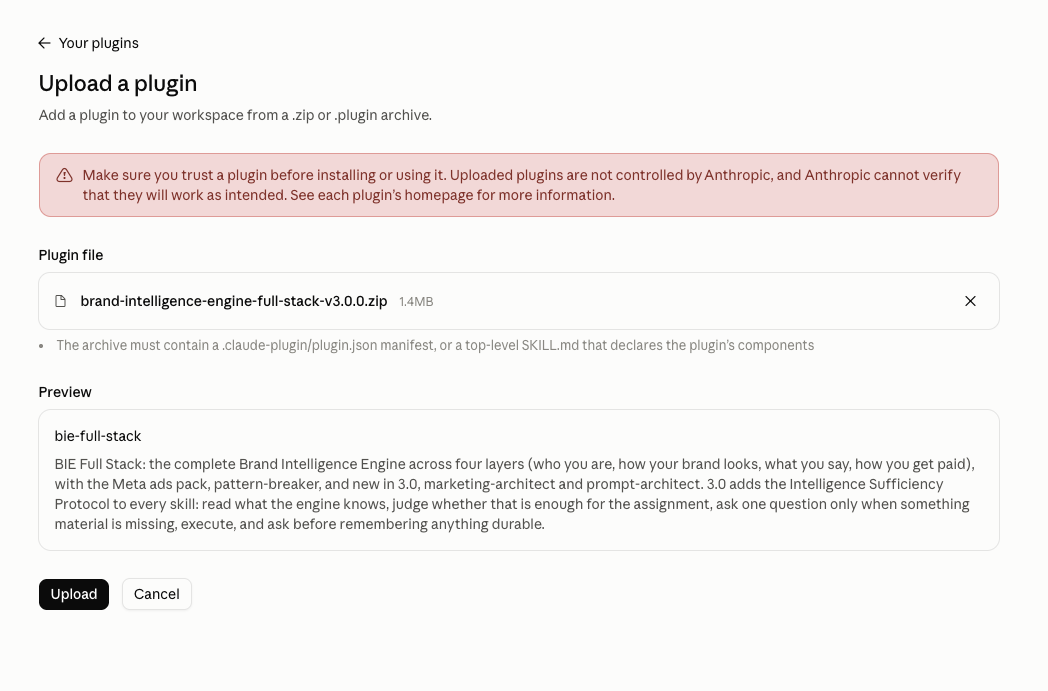
- Wait for Cowork to check it.Cowork validates the plugin and then lists the skills inside it.
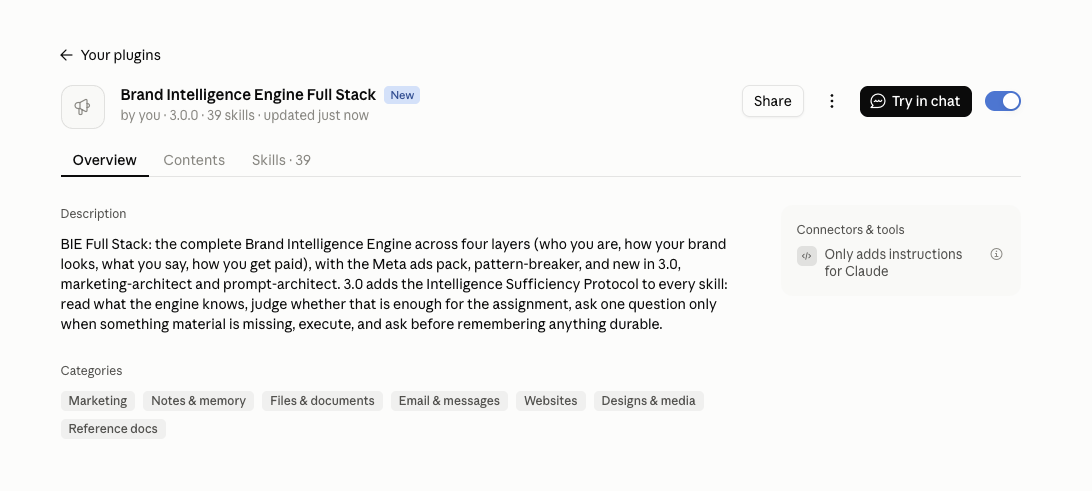
- Start a new chat.A chat only sees the skills that existed when it began, so a chat you already had open will not see the BIE. Open a fresh one.
Confirm your skills
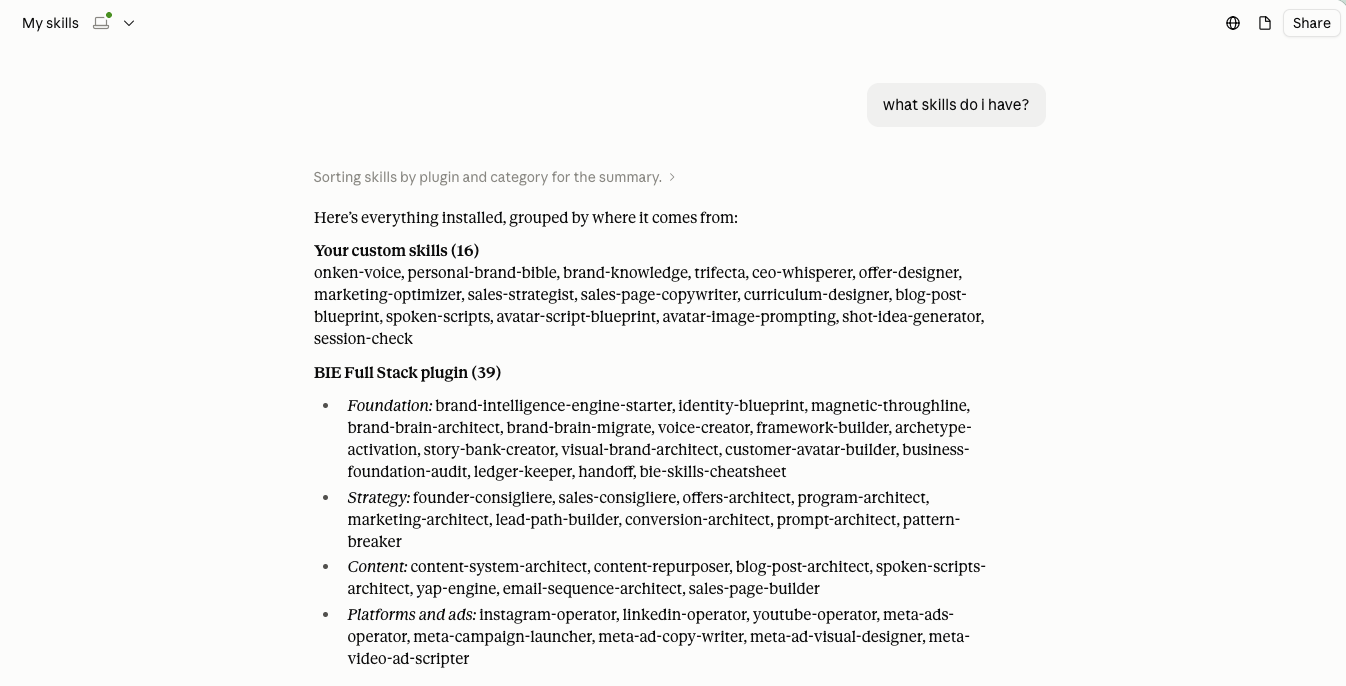
In a new Cowork chat, with your Brand Workspace chosen as the folder, type:
What skills do I have?
If Claude answers with your BIE skills, names like identity-blueprint and brand-brain-architect, your install works and your setup is done.
If it lists nothing, start one more new chat and ask again. Still nothing? Go to The plugin will not load in Troubleshooting, or ask AI Onken.
Then go back to Studio Home and tick off your setup steps.
The core pieces
Four things to know. Everything else you can pick up as you go.
Brand Brain
What the BIE knows about you and your brand: who you are, how you sound, what you sell. It is a document in your Brand Workspace, and Claude reads it at the start of every chat.
Skills
Specialist tools for specific jobs, such as building your Identity Blueprint or writing an email sequence. You call one by asking for it in chat. They are listed in the Skills rail on every Studio page.
Ledger
Where your projects stand: what has been decided, what is done and what is still open. Your Brand Brain is about you. Your ledger is about the work.
Handoff
How you move into a fresh chat when the current one gets long, without losing anything.
All four live as files in your Brand Workspace. Nothing important lives in the chat itself.
Create your first ledger
Building your foundation takes several sessions, and every new chat starts with no memory of the last one. The ledger carries what you decided from one chat to the next. Set it up in your first session, before you start building.
In a Cowork chat in your Brand Workspace, type:
create a ledger for my brand build
The Ledger Keeper skill sets it up inside your workspace. From then on, after anything you settle, finish or rule out, say:
log it into the ledger
That one sentence is the habit. A ledger nobody writes to does not help.
Handoff: continuing in a fresh chat
Every message you send re-sends the whole conversation behind it. So a long chat uses more of your Claude allowance and starts holding less of what you decided: it slows down, repeats questions and forgets. You will usually feel it at around 30 messages.
You will not need this every day. When a chat feels heavy:
- Log what matters.Say log it into the ledger.
- Ask for a handoff.Say handoff. Claude saves the full context as a file in your workspace and gives you back one title line.
- Open a new chat and paste that title line as your first message.Then say load my handoff. Claude reads the file and carries on where you stopped.
Pattern Breaker
Pattern Breaker checks a draft or a page for the habits that make writing read as AI-generated, and fixes them. Use it on anything the public will see, especially sales writing, as the last step before it goes out. Paste the draft into a chat and ask Claude to run pattern-breaker on it.
You do not need it to set up. It is worth knowing it is there.
The two questions that get you unstuck
Shows you the tools you have. Ask it when you want to see what is available.
Reads where you are and gives you the next step. Ask it any time you feel lost.
Ask either one in a Cowork chat in your Brand Workspace. To start a skill, ask for it by name, for example start my identity-blueprint. Brand new? Say Run the BIE Starter. I'm new, walk me through the whole thing.
Ask AI Onken
AI Onken is your personal brand mentor inside the Studio, trained on Nick's frameworks and the whole BIE. Ask it when you want help with:
- where you are in your build, and what to do next
- which skill fits what you are trying to do
- how the BIE works, and fixing something that is not working
- Nick's thinking on building a personal brand
It opens from the Ask AI Onken button on every Studio page, and it knows which page and section you are on, so you can ask about exactly what is in front of you.
Ask AI OnkenTroubleshooting
Almost nothing here can be broken for good. Your Brand Brain and files sit in your own folder, so app trouble does not touch them.
Safari unzipped my BIE download
You have a folder where Cowork needs a ZIP. Delete the folder, follow the Safari ZIP fix, and download again. Or download with Chrome.
The plugin will not load
Check these in order:
- Safari unzipped it. See above.
- The ZIP is damaged, often because it was sent through a chat app. Download it fresh from step 1.
- An old version is stuck. Quit Claude completely. In Finder, go to
~/Library/Application Support/Claude/cowork/plugins/, move the old BIE plugin folder to the Trash, reopen Claude and upload the new ZIP.
Also check the four things at the top of this page: a Mac or Windows computer, a paid plan, the desktop app and a folder on your computer. One note: Claude inside Cowork cannot fix Cowork itself. To troubleshoot the Claude app or Cowork, you can ask Claude in a web browser. The browser is only for that kind of help: it is not where you run the BIE.
Still stuck? Email hello@nickonken.com with a screenshot and the subject "BIE bug: plugin".
Claude cannot find my workspace or save files
The folder must be on your computer and chosen for the chat. Check:
- Dropbox: the folder is set to Available offline, never Online-only.
- Google Drive for Desktop: switched to Mirror files.
- iCloud: "Optimize Mac Storage" is off.
- Connecting Claude to Google Drive as an app connection is a different thing. It cannot save your files. Your workspace has to be a folder on your computer.
Where are my Brand Brain and my files?
In your Brand Workspace folder on your computer. The Brand Brain is Brand-Brain.md and Brand-Brain.docx at the top of the folder. The .docx is for you to read; the .md is the copy Claude reads. Keep both.
Think something was deleted? Check the folder itself, then Dropbox's Deleted Files on the Dropbox website, then Time Machine or File History. Deleting chats never deletes files.
Will updating or reinstalling delete my Brand Brain?
No. The plugin holds the skills. Your Brand Brain and ledgers are files in your folder. Removing or updating the plugin changes the skills and nothing else.
My chat is slow or forgetting things
- Check the model. Use the newest top model in Claude's model picker. Older or lighter models are slower and weaker.
- Check the chat's length. Around 30 messages, log to the ledger and hand off to a fresh chat. That is the designed workflow.
- Check your Brand Brain's size. A very long Brain is heavy to read every time. Keep project status in your ledger, out of the Brain.
The output sounds generic
Almost always, the BIE needs more of you. Feed it more real material, the more specific the better. Check your Writing Voice was built from things you wrote (transcripts of you talking belong to your Speaking Voice). Push back on a draft with the real version. And make sure your Brand Brain is built: skills work much better on top of it.
How do I know which skill to use?
Ask What do I do next? in a Cowork chat, or browse the Skills rail on any Studio page, where each skill has a one-line description. For a recommendation that fits you, ask AI Onken.
How do I get the newest BIE?
I installed it, but I do not know how to start a skill
Skills do not have a button. You call them in a Cowork chat: type What skills do I have? to see them, then ask for one by name, for example start my identity-blueprint. If you are new, say Run the BIE Starter. I'm new, walk me through the whole thing.
Anything else, ask AI Onken. For access, email hello@nickonken.com.
Logging in
You log in to the Studio with the email address you joined with and a password you choose. There is no username to remember.
- The first time: we email you a link to set your password. Open it, choose a password, and you land in the Studio, logged in.
- After that: go to brandintelligence.onkensworld.com and log in with your email and password. The Studio remembers your browser for 45 days.
- Forgot your password, or never set one: on the login screen, choose Forgot password and enter your email. We send you a link that works for one hour.
- Changed your password: any other device you were logged in on is logged out, so log in there with the new one.
Your password is stored scrambled (hashed), never as the password itself, so nobody can read it, Nick included. Still stuck? Email hello@nickonken.com.
Your data in the Studio
Here is what the Studio keeps about you and why. We keep it to run the Studio and to make it better. Nick sees it through the Studio's own admin tools.
- Your account. Your email address, your name, which version of the Brand Intelligence Engine you have, when you joined and last visited, and your password, stored scrambled (hashed) so nobody can read it.
- Your progress. Which steps you have ticked off on Studio Home, so your place is the same on every device.
- How you use the Studio. Which pages and articles you open, which buttons and skills you click, when you come back, and whether you are on a phone, tablet or computer. This is recorded against your email address, with the time of each visit. It shows Nick where the Studio is clear and where people get stuck. It does not include anything you type to AI Onken.
- Your conversations with AI Onken. AI Onken is a separate part of the Studio, and it keeps its own record. Your messages and its answers are saved, so Nick can check its answers and improve them. It also keeps a short note about you, such as your name and what your brand is about, so later answers fit you better. AI Onken runs on Claude, made by Anthropic, so each message you send goes to Anthropic to produce the answer. If AI Onken cannot answer a question, or you mark an answer as not helpful, that question and answer are emailed to Nick so he can follow up.
- Emails. Welcome, login and password emails are sent through Resend, an email delivery service, which receives your email address and the message.
- Server logs. Like most websites, the web server records the internet address a visit comes from and the page it asked for. These logs are deleted after about two weeks. When something goes wrong, the Studio's error log can also note the email address involved, so the problem can be fixed.
What the Studio never sees: your Brand Brain, Identity Blueprint, Magnetic Through-Line, Writing Voice and everything else you build with the BIE. Those are files in your own folder, and your work with them happens in Claude on your computer. The only part of that work the Studio ever holds is whatever you choose to type to AI Onken.
Questions about your data? Email hello@nickonken.com.